Where Chatterino saves chat logs (and how to read them)
If you use Chatterino to watch chat, it can keep a plain-text log of every message — but logging is turned off by default, and the folder it writes to isn't obvious. This guide shows you how to turn logging on, where the files end up on Windows, and what you can do with them once you have them.
Turn logging on
Chatterino won't save anything until you enable it:
- Open Chatterino and go to Settings (the gear icon)
- Open the Moderation tab
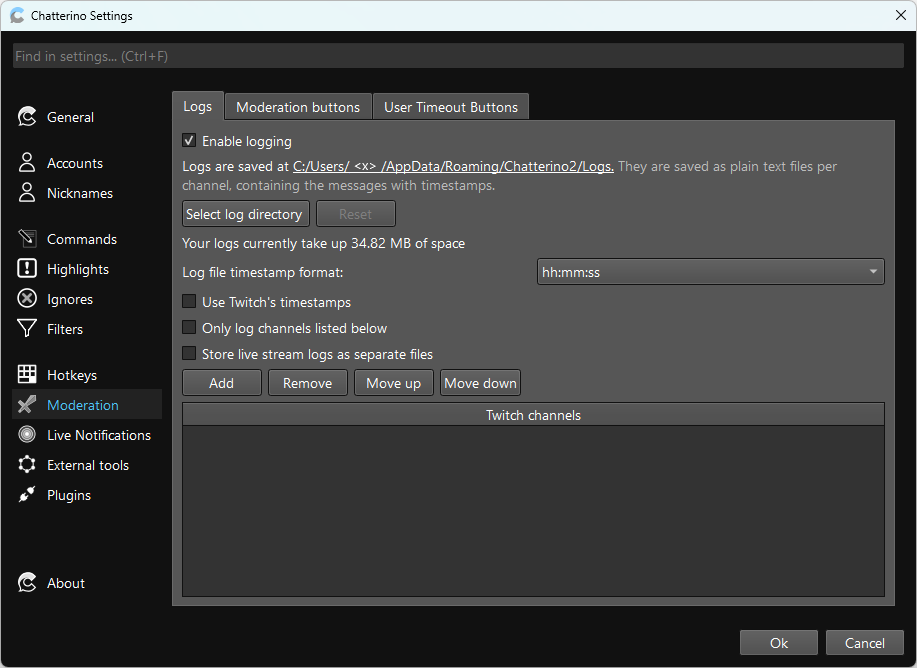
- Find the Logs section and tick Enable logging
- Click the logs directory path shown just below — it's displayed as a link (like a URL) and opens that folder straight away
Chatterino shows the exact logs directory right there in the Logs settings, rendered as a clickable link. Click it rather than typing a path by hand — it always points at the correct folder for your install.
Where the files live
On Windows, Chatterino keeps its logs inside its app-data folder — typically under:
%APPDATA%\Chatterino2\Logs
Inside, logs are organised by platform and channel, with one .log file per
channel per day. You can paste %APPDATA%\Chatterino2\Logs into the File
Explorer address bar to open it, but if you're unsure, clicking the
directory path link in Chatterino's Logs settings (above) always takes you
to the right place.
Each line looks roughly like this:
[14:32:18] viewer123: LETS GO
[14:32:21] another_user: that was insane
What to do with the logs
A folder of .log files isn't much use on its own. To actually see who talked
most, your top emotes, the words your community used, and the moments chat
spiked, open the log in Stream Chat Summary — a Windows chat analyzer that
reads Chatterino's log format directly:
- In Stream Chat Summary, click Import → Log File (Chatterino)
- Browse to the
.logfile from your Chatterino logs folder - (Optional) Enter the channel name to enable channel-specific emotes
- Click Import
Within seconds you get top chatters, emote usage, a word cloud, engagement tiers, and auto-detected highlights from a file that was just sitting on your disk. See Importing a log file for the full walkthrough, including custom timestamp formats.
You don't need Chatterino logs to use Stream Chat Summary. You can also paste a Twitch VOD URL, import a Twitch Chat Downloader CSV, or monitor a live stream directly.