Recap Card
Menu: Export → Export Summary Recap Card...
Generates a shareable PNG image summarising the whole session — built for posting to social media, sharing with your community, or dropping into a Discord post-stream debrief.
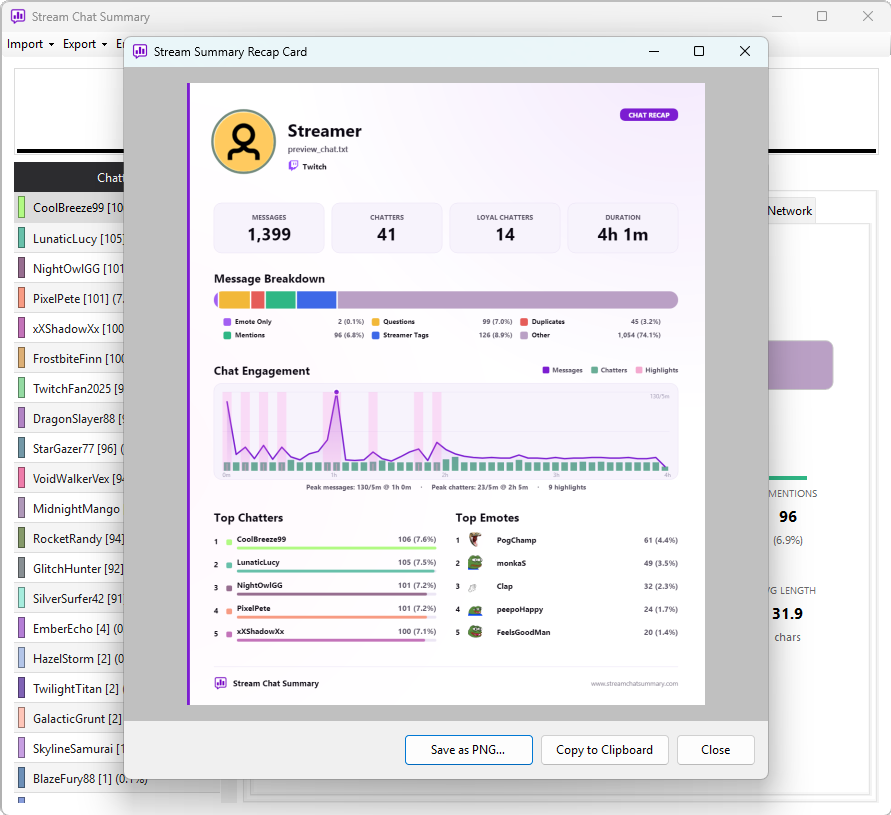
After the card is built, a preview window opens. From there:
- Save as PNG… — writes the image to a file you choose
- Copy to Clipboard — copies the image so you can paste it straight into a social media post, Discord message, or anywhere that accepts images
What's on the card
The card is a portrait layout with sections stacked from top to bottom.
Header
The top section identifies the stream:
| Element | Source |
|---|---|
| Streamer name | Streamer name entered at import time |
| Avatar | Channel profile picture, if channel details were loaded; otherwise the streamer's initial letter |
| Stream title | Broadcast title for VOD imports; otherwise the import source name (file name or channel label) |
| Platform | Twitch, Kick, or YouTube, shown with the platform logo |
The avatar is shown in a circle with a colour ring. The ring colour is the streamer's own chat username colour if they appear in the log — otherwise a colour generated deterministically from their name.
Headline metrics
Four tiles across the top of the card body:
| Tile | Value |
|---|---|
| MESSAGES | Total message count |
| CHATTERS | Unique chatters after threshold filtering |
| LOYAL CHATTERS | Chatters in the Engaged or Core engagement tiers — your returning, loyal audience |
| DURATION | Session length from first to last message |
Message breakdown
A proportional stacked bar showing how messages break down across the six classification categories, using the same colours as the Chat Info tab. A two-row legend beneath the bar shows each category's count and percentage.
The six categories are: Emote Only, Questions, Duplicates, Mentions (non-streamer @mentions), Streamer Tags (@streamer @mentions), and Other. See Message categories for how each is defined.
Message categories are not mutually exclusive — a message can be both a Question and a Mention at the same time, so it's counted in both. Legend percentages can therefore total above 100%.
Chat engagement
A full-width chart using 5-minute time buckets:
- Purple line — messages per bucket
- Green bars — unique chatters per bucket, on the same scale as the message line
- Pink ticks — detected highlight windows, shown as a soft pink band with a short pink tick at the busiest minute within each band
- Gridlines — two faint horizontal lines mark 50% and 100% of the vertical scale, with the peak value labelled on the top line (e.g. "102/5m")
- Time ticks — round elapsed-time labels along the bottom (whole hours where possible, e.g. "1h", "2h"), derived from the stream's duration, to place the peak minutes on the timeline
Below the chart, a caption names the peak message minute and the peak chatter minute, along with the total highlight count.
Top chatters
The five highest-volume chatters ranked by message count. Each row shows:
- Rank number and colour swatch
- Chatter name
- Message count and percentage of total messages
- A proportional bar scaled to the top chatter's share
Top emotes
The five most-used emote codes across the session. Each row shows the emote image, the code, the total usage count, and the percentage of all messages that contained it. If no emotes are found, this section shows "No emotes detected".
Footer
The app logo, name, and website address.
Getting the best result
The card generates from any import with no extra steps. These optional steps improve it:
- Load channel details — fetch the channel after import (see Channel details). This provides the avatar and, on Twitch, the channel display colour used for the avatar ring.
- Load emotes — open Emotes → Emote Manager and add the channel's BTTV, 7TV, FFZ, or Kick emote sources. Emote images then appear in the Top Emotes section.
- Use a VOD import — Twitch VOD imports carry the broadcast title, which appears as the subtitle under the streamer name. For Chatterino log and CSV file imports the subtitle falls back to the file name or channel label.
Skipping any of these is fine — the card still generates. The avatar slot shows the streamer's initial, emotes appear without images, and the subtitle shows the file name or channel label instead of a broadcast title.
Examples
| Who | How they use it |
|---|---|
| Streamer | Post the card on social media after stream to show off the energy — total messages, top chatters, and engagement graph give a snapshot your community can recognise themselves in. |
| Editor | Drop the card into a Discord thread alongside clipped highlights so the streamer can see which moments drove the most chat activity. |
| Community manager | Compare cards across multiple streams to spot trends — was chat more engaged this month? Are new names appearing in the top chatters? |
| Analytics-minded viewer | Share the card in a fan Discord to spark conversation about the stream's biggest moments and most active regulars. |