Conversation view
The conversation view is a separate window that isolates one chatter's conversation from the noise of a busy chat. It is available in both the Live Stream Monitor and the Replay window.
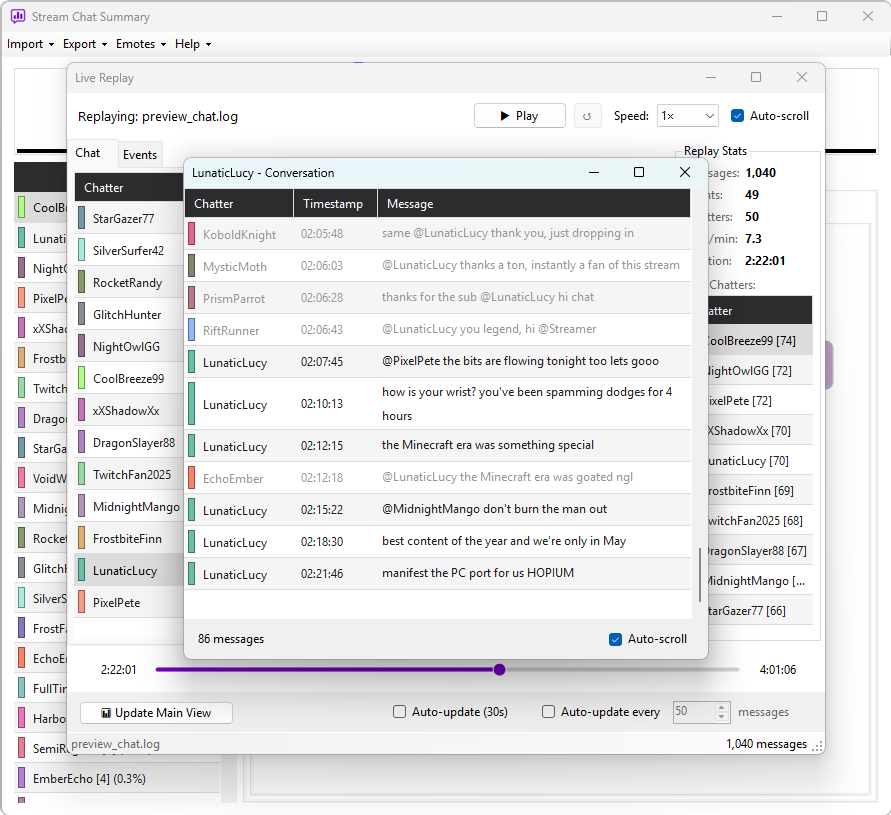
Opening it
Click any username in the message grid of either window. A conversation window opens for that chatter, centred over the window you opened it from.
- Clicking the same username again brings the existing window to the front.
- Clicking a different username switches the window to that chatter's thread.
You keep one conversation window open at a time, so picking a new chatter simply replaces the current thread.
What it shows
The thread contains exactly two kinds of message, interleaved in chronological order:
- Every message sent by the chatter.
- Every message that @mentions the chatter.
A message that only mentions other people is not included — the thread stays focused on the selected chatter rather than expanding into unrelated conversations.
Each row carries the sender's chat colour as a small swatch on the Chatter column, and emotes and emoji render inline, exactly as they do in the main message grid. Replies from everyone else are shown in lighter grey text, so messages sent by the viewed chatter stand out clearly.
Columns are Chatter → Timestamp → Message, with the message text word-wrapped.
Replies and mentions
The conversation view decides what belongs in a thread purely from the
@mentions in each message, so it behaves the same whatever platform or log
you're looking at:
- Replies — when someone uses Twitch's or Kick's reply feature during a live
session, their message is treated as a mention of the person they replied to.
So a reply aimed at the chatter you're viewing shows up in their thread even if
the sender never typed an
@. - Typed mentions — any message where someone types
@usernameis matched the same way. On YouTube, where there's no separate reply button, this is how every mention is written.
Reply information is only available while you're capturing a stream live. If
you re-import a saved log later, the conversation view uses whatever @mentions
are already written in the messages — it can't recover reply connections that
weren't recorded as text.
Live and replay behaviour
- Live Stream Monitor — the window stays open as the stream continues and appends new messages to the thread the moment they arrive.
- Replay — the window tracks the seek bar. As playback advances, or you scrub forward or backward, the thread rebuilds to match the messages played back up to the current position.
Copying messages
Select one or more rows and right-click to Copy to Clipboard. Each
selected message is copied on its own line, in chronological order, in the format
[HH:MM:SS] username: message — the same format used by the other message grids.
Use Ctrl-click or Shift-click to select several messages before copying.
Display limit
The view keeps the most recent 200 thread messages on screen. When a chatter is active enough to exceed that, the oldest rows scroll off the top and the count in the bottom-left corner reads "200 of N messages", where N is the true number of messages in the thread. Turn Auto-scroll off (bottom-right) if you want to read back through the thread without it jumping to the newest message.