Search
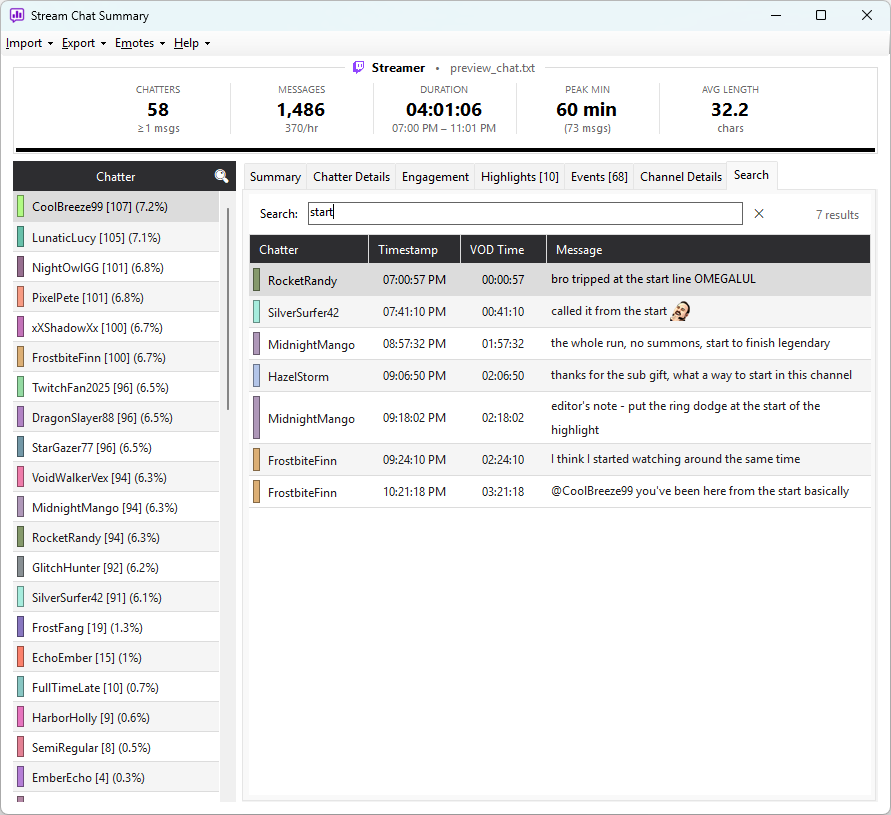
The Search tab lets you find any message across every chatter in the loaded log by typing a word or phrase. It is always visible once a log is imported — no special import settings are required.
How to use it
- Click the Search tab on the right-hand panel.
- Type any text into the Search: box. Results appear automatically as you type.
- Press Enter to search immediately.
- Click ✕ to clear the box and reset the results.
A count appears to the right of the search box — for example 7 results — so you can tell at a glance how common a word or phrase is in the chat.
How matching works
- Case-insensitive —
KEKW,kekw, andKekwall match a search forkekw. - Substring match — searching for
lolwill also matchlolol,clol, or any other string containing those letters in sequence. - All chatters — every message in the log is searched, regardless of which chatter sent it.
- Emote codes — emotes are stored as their text codes, so searching
for
LULfinds every message containing that emote.
Results are ordered by timestamp from earliest to latest, with columns for Chatter, Timestamp, VOD Time, and Message. Emotes render inline in the Message column.
Context menu
Right-click any row in the results grid for the same quick actions available in other tabs:
- Copy To Clipboard — copies
username | timestamp | messageto the clipboard. - Copy Twitch Timestamp Link — copies a clickable VOD URL to that exact moment (VOD imports only).
- Open in Browser — opens the VOD at that moment in your default browser (VOD imports only).
Timestamp column visibility
The Timestamp column follows the same show/hide setting as all other message grids in the app. Toggle it in the import dialog's Show timestamps option.